
Step 1. Go to tagmanager.google.com, and sign in to your account.
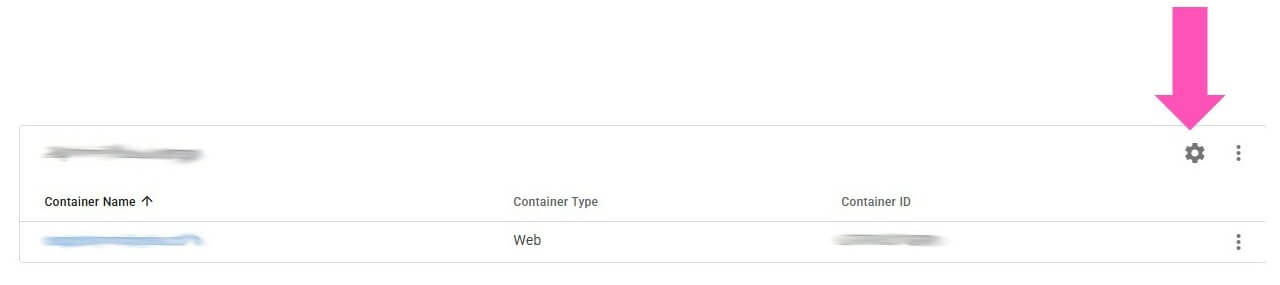
Step 2. You’ll see the list of accounts. Click on the cog icon, as shown in the screenshot.
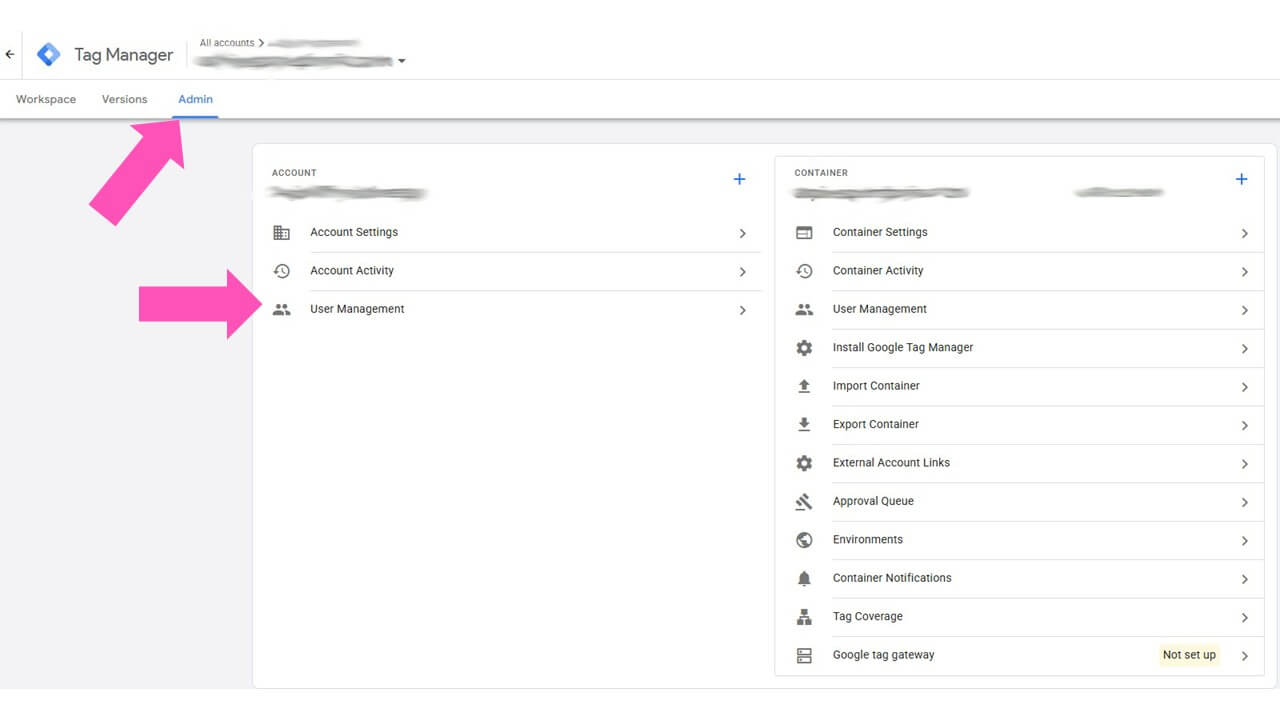
Step 3. In the Account Admin page, select User Management on the left.
Step 4. In the popup window, click the blue + button in the top-right corner. Select Add Users.

Step 5. Type in their email address.
Step 6. Under Account permissions, choose between Administrator access. You can choose to modify the container access here too by clicking the Set All link

Step 7. Select Publish in the container permissions and click the done button.

Step 8. Click the Invite button at the top of the screen.

The user you added will receive the invitation via email or through an Invitations card in Google Tag Manager. They just need to accept the invite to start working with your Google Tag account.

Note that any users you add as an administrator to your Tag Manager account will also be able to add new users and share access to your account.