
The first step of adding people to your Google Business Profile is to locate and log in to your Google Business account.
You can find your business listing by:
- Entering the name of your business in Google Search (you need to be in the correct Google account to be able to edit your Google Business Profile)
- Enter the name and location of your business on Google Maps or Google Search.
1. Locate your google business profile
The first step of adding people to your Google Business Profile is to locate and log in to your Google Business account.
You can find your business listing by:
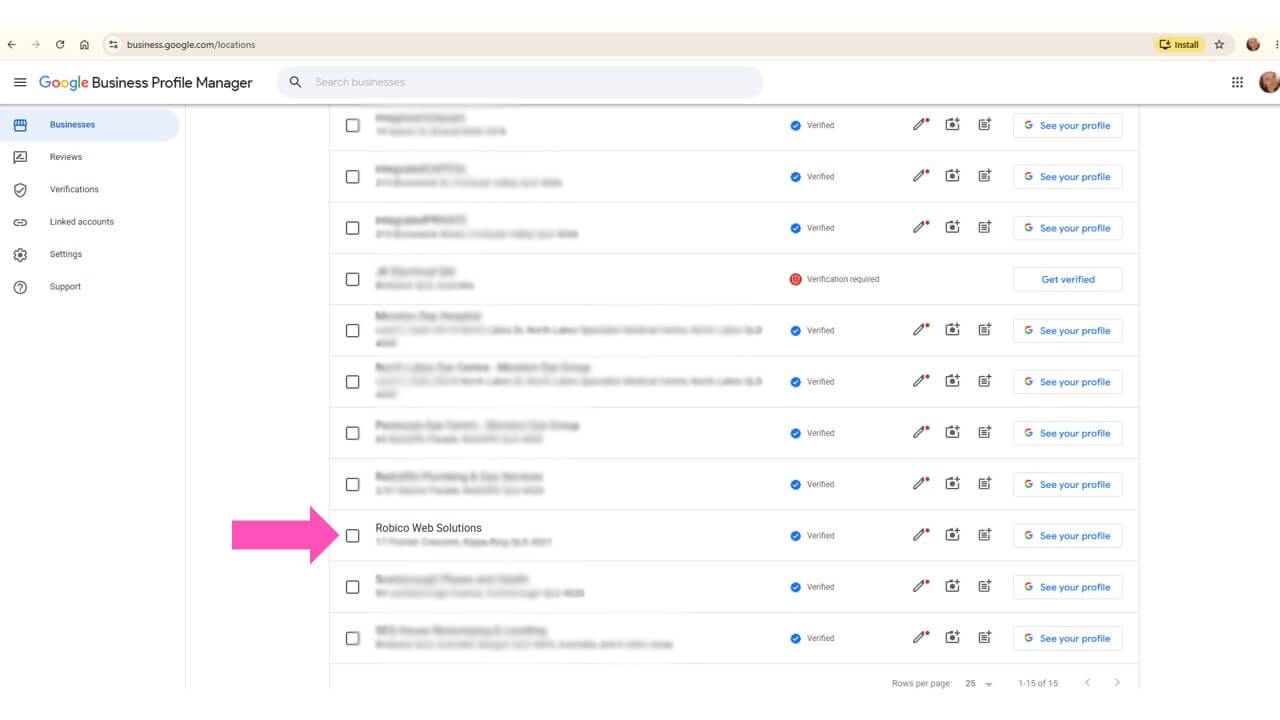
- Clicking on https://business.google.com/locations and click on your profile
2. Google business profile settings
- Once your profile is showing on the screen, click the 3 dots to open the business settings. This is where you can access a menu and you need to choose “Business Profile Settings”

3. Add people to your profile
- Click on “People and Access”

- Click on the


-
Add users by email address
-
Decide what level of access you want them to have
- Click “Invite”

4. How to Remove/Change Owners and Managers
- Sign in to your Google business account as per above
- Go to the three dots and open the menu, go to Business profile settings
- You will see the list of people with assigned roles, find the person you want to remove from the profile and click on “Remove Person”
